
Ayo. In the last part of this series, we saw the challenges of bringing an particularly unlucky artist friend to Linux Mint. For the most part, the migration was successful and he got used to his new life with Mint-chan pretty quickly – sometimes getting more intimate with her than expected at this time, I was a slower at my time.
But there was something missing: the integration between his drawing tablet (Wacom Intuos Draw) and the painting tool he uses, Clip Studio Paint version 1. I hinted on the previous text, the last remaining solution would be to use a Virtual Machine with Windows 10 specifically for this program, a complex setup that we left this for the second day of the migration. I wish it were that simple, what really happened was a lot more … frustrating.
On this part I’ll tell how awfully things can become, how useless“newbie friendly” tools can end up being, and how trusting too much tools that you already know might be shooting your own two feet. For lack of creativity for being tired, I promise to tune down the romance lore this time.
Clip Studio Strikes Back
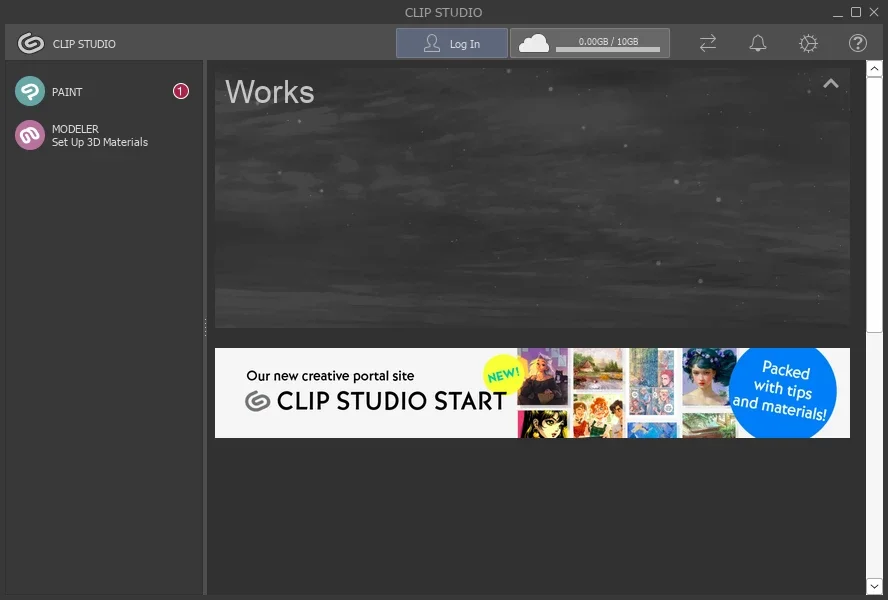
The main difficulty of this system migration was clear from the beginning: getting Clip Studio Paint to run is not enough, no matter how well it’s performance gets, it all can go to waste.
With hindsight of the final solution and being very honest: Clip Studio runs horribly on Linux by any compatibility layer (Proton, pure Wine, whatever). Not only the performance is clearly inferior, but several parts of the application won’t even load! By the previous text you already expect the bad luck to kick in here, and it of course made itself present: some of the parts that don’t load are used by my friend.
And that is before even talking about the deal-breaker: the integration between Wacom tablet and Wine/Proton is completely broken. Pen pressure and stabilization are the most important resources my artist friend uses constantly on his work, and both do not work at all though the compatibility layers mentioned before. It’s a well know problem for years, with no prediction of when a solution will even start to be worked on. Trying to install the Wacom drivers for Windows only makes the problem worse, breaking the application to the point it won’t even launch.
When the abusive ex of my friend (Windows 10) was smirking at a corner, waiting for him to bring her back into his life, I advised him to do what any self-respecting man would when needing something only an abusive ex knew how to do … replace her with a robot, of course! And here comes the Digital Clanker: a Virtual Machine!
Of course things from here onward were not as easy as they should be, and the infamous absent-father Vergil says: but you already knew that.
Go to Hell, Oracle!
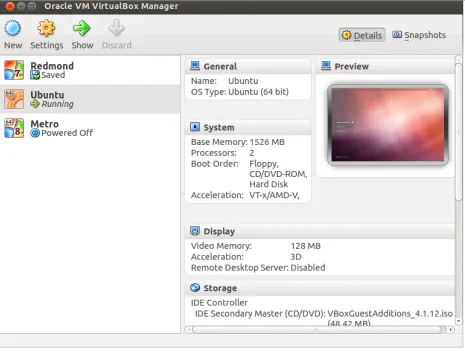
You may ask why am I that mad against Oracle from the get go. Back at the day, when I used to play more with operating systems, my go-to software to easily use Virtual Machines was Virtual Box – simple, intuitive and quick to use. But it’s 2025, things just can’t be easy, can they?
In a fresh Linux Mint installation, in version 22.2, Virtual Box will throw 2 problems at you:
- it can fail to enumerate USB devices
- it will not work with the stock Mint settings
The first problem makes impossible to share the input of USB devices, like the Wacom tablet, with the Virtual Machines – which is required to get Pen Pressure and Stabilization working. And installing the Extension-Pack does not solve the problem, so this application is useless in our scenario. YAY!
The second problem is where my patience burned away in the flames of rage. With the standard installation of Mint, Virtual Box will not be able to start Virtual Machines because it conflicts with KVM, but the real problem is what solution the “easy and user-friendly” VM software tells you to do: re-compile your kernel ... RE-COMPILE YOUR F-ING KERNEL! I hope me and my friend are amusing, now that Oracle promoted us to clowns!

Dark Patterns
Before telling about the crappy experience with the next “user-friendly” VM software in the list, we need to talk about a subject that arrived from what seemed to be a successful installation at first: Dark Patterns. From the Deceptive Patterns website, they are defined as such:
“Deceptive patterns (also known as “dark patterns”) are tricks used in websites and apps that make you do things that you didn't mean to, like buying or signing up for something.”
Local account?
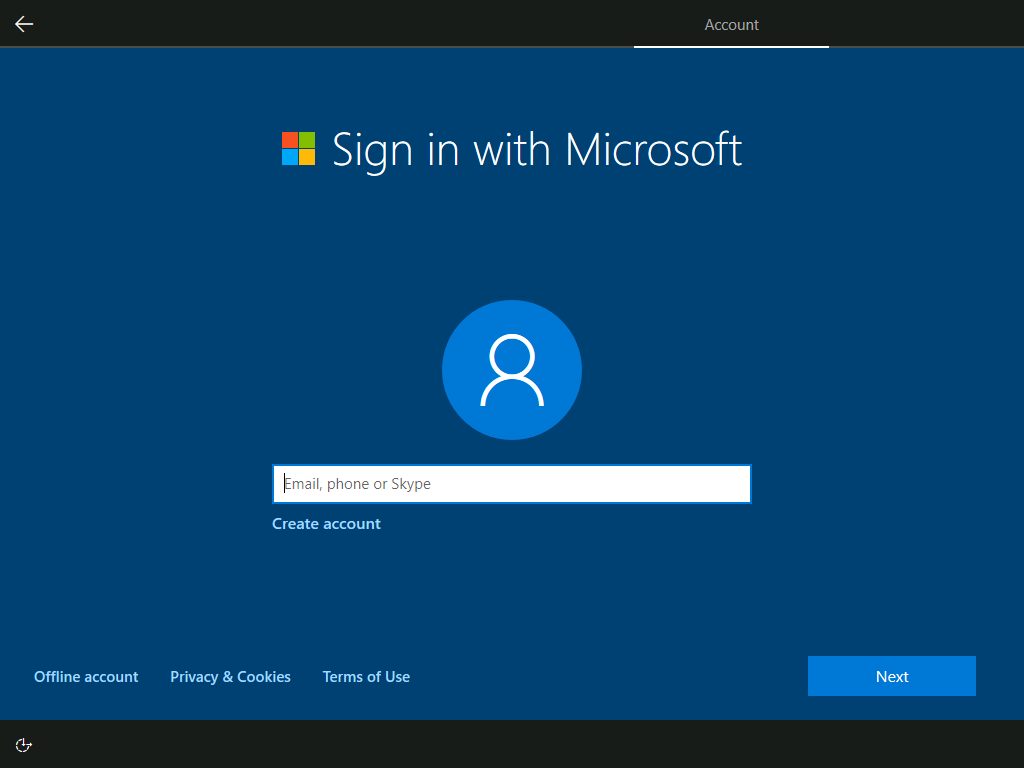
The first Dark Pattern comes at the beginning of the configuration process: a screen is purposefully designed to push you into using/creating a online Microsoft Account to use your Personal Computer, leaving the option to have an Offline account hidden in a corner. Looking at this is not surprising the option being completely removed in Windows 11, the writing was already on the wall.
But MicroSlop’s Dark Patterns won’t end here: the very next screen tries to gaslight you into “the advantages” of having an online Microsoft Account and labels the option to not use one as “Limited experience”.
At this point I was already cursing the mothers of the employees that made those screens, but another Dark Pattern awaits at the next step: in the same place that you had to click twice to get there, now there is an option that will take you all the way back using an online account (I hope it’s obvious how I know that outcome).
To add insult to the injury, when you manage to create a local account the setup make you create three Security Questions related to your personal life with predefined answers – and as you can already guess, every one of them has the option to take you all the way back into using an Online Account!
While Mint-chan only wants you to accept her, even the Clanker version of Windows 10 inside a toaster Virtual Machine wants to infiltrate every part of your life.
Privacy?
After treating you like an idiot, Microsoft throws you two full screens of Privacy Invasion: the first screen with all invasive options enabled by default and a fucking scroll bar (because some options are not immediately visible), then the second screen works differently to confuse you (using a different button to proceed if you don’t enable any of the invasive options).
Now you know the reason why I don’t use the suffix “-chan” with Windows 10: because she is a bitch.
Another Clanker?
On the next step she pushes you into another Clanker: Cortana.
Only after avoiding turning your Virtual Machine into a NTR, by clicking “Not now” … NOT NOW, the installation will finally proceed. And all this bullshit is on Windows 10, the one people pretend to be a good system, not Windows 11 that everyone hates. You may be thinking “But big influencers said that Windows 10 was a good version!”, for which my answer comes in the famous words of the indian guru Osho.
Another “newbie friendly” failure
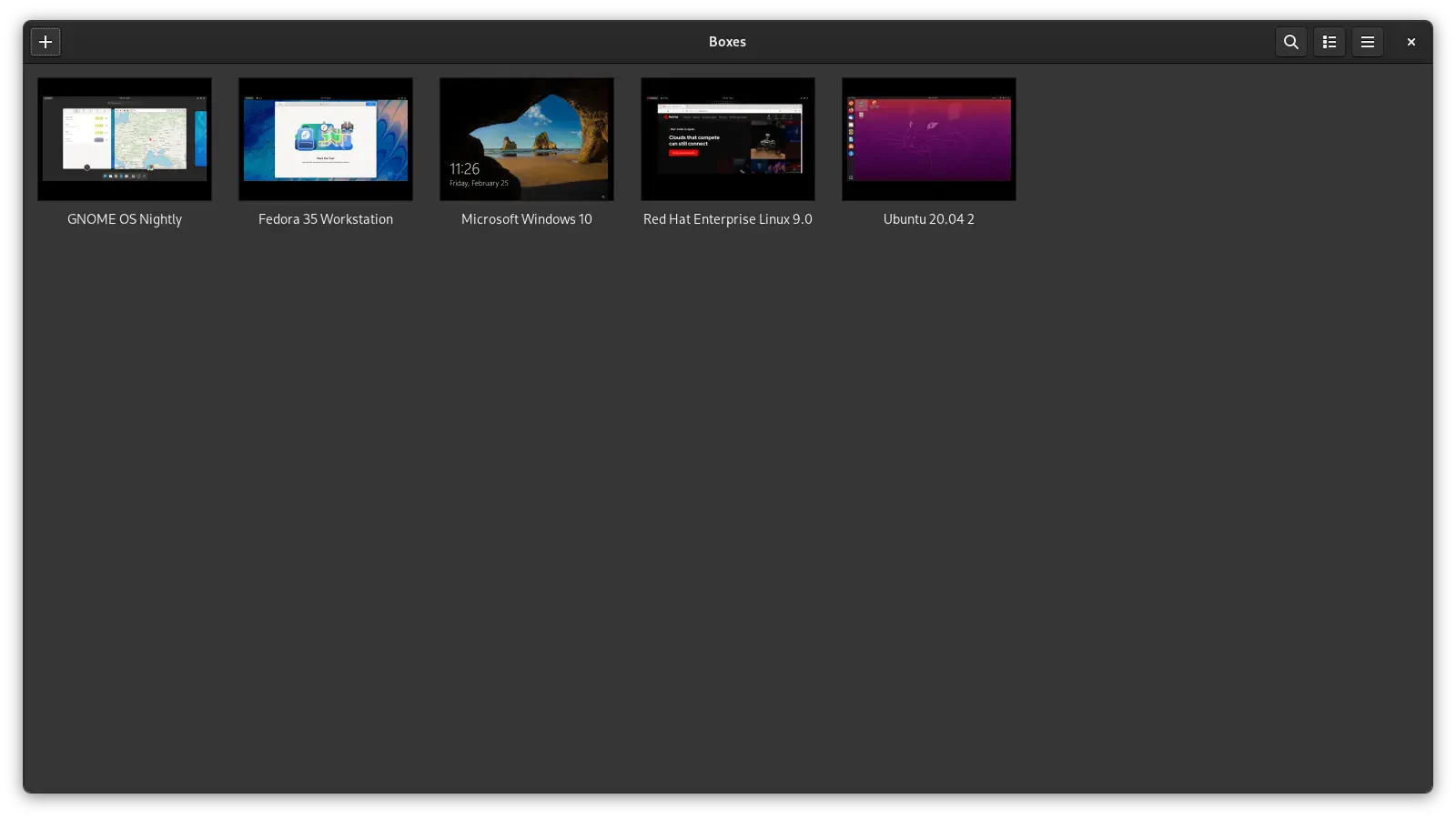
Before anything else is said, with all the rage burning in my chest: FUCK GNOME! This artsy-fartsy UI drowned in “minimalism” fetish is developed to make users suffer for “aesthetics”. Hiding everything you need inside ‘‘‘‘intuitive’’’’ small menu-icons outside of view is beyond bad design, removing options over time is intentionally screwing the user. Honestly, there’s something very wrong when you need to edge your pc to make it work!
That rant aside, Gnome Boxes is pushed as a very user-friendly Virtual Box software and was my obvious choice after Virtual Box disappointed me. The whole previous section about the Dark Patterns of Windows 10 was first seen by us, my friend and me, in Gnome Boxes. After installing Boxes from the Flatpak version (to not need password) and setting up the Windows VM, everything looked fine for the first time … little did I know this was a passport to Clown World.
On the second day of the migration, the last task was supposed to be only get the Wacom Tablet to work. Both Clip Studio Paint and the Wacom drivers were installed and … nothing worked! Researching why the hell things were not working, I finally found a information mentioned before: we needed to share the USB devices of the host machine (Mint-chan) with the Virtual Machine, or as nerds call it “USB Redirection”. And the second disappointed came immediately: when we went for the settings of the VM on Boxes, there was a big warning saying that … The Flatpak version of Boxes does not support USB Redirection. Everything was in vain!
So what is the next logical step? “Using the native version of Boxes” you might say. So we tried, another whole installation of Windows 10 Clanker edition and … it did not work, AGAIN! This time the issue was different: Gnome Boxes could not find the Wacom tablet plugged in the host PC, so it was not possible to share it. In hours of research the only thing I found is that seemingly no one else that had the same problem found a solution.
And I almost forgot to tell that at one point Boxes stopped working out of nowhere because it “could not find KVM” – at the same time that Virtual Box would not work because of KVM. As a silver-grade certified clown, I gotta ask: do you even honk?
Bless the Unknown Savior
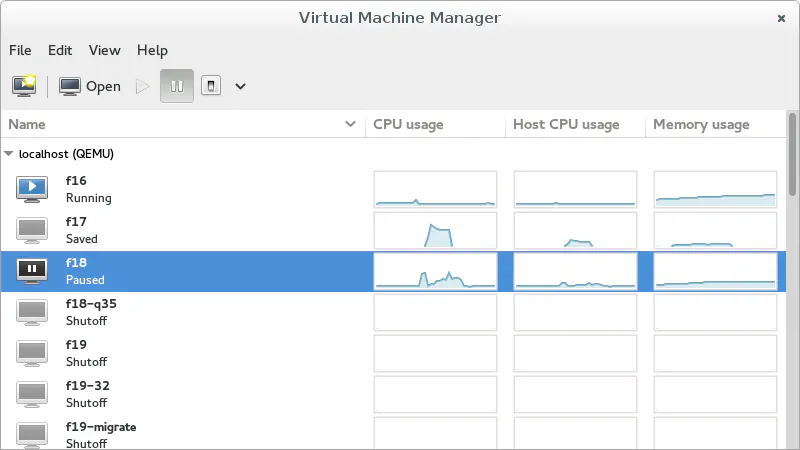
Both devils I knew had already failed for the task, my technical knowledge and experience were looking like a fraud, and my friend was having the ungrateful task of keeping me calm while I was almost losing my mind out of frustration. But the research I was doing, while trying to find what to do, showed me a recurrent name: QEmu.
From the little I’ve heard from it before, it was the best possible tool tor Virtual Machines on Linux, the golden standard shining from the heavens, just not user-friendly. But after the “easy” tools failed, why not? So searching how to install and use it, I found a very helpful thread on Linux Mint Forum that mentioned two system packages: bridge-utils and virt-manager. While my friend installed those packages by command line (his decision, to do it faster than finding stuff on the Software Manager), I looked closely on the second package: virt-manager, Virtual Machine Manager, a program to use VMs atop of the QEmu/KVM infrastructure that does not look hard to use – the one in the image above.
Digging a little bit, I found the official documentation for this program and was immediately divided: both amused by how comically lazy it looks and amazed with how straight to the point it is. At the end of the day, we also followed the last part of a tutorial to create the VM and get it running – that was not necessary at this point, but were were both already tired. The installation went well, even with MicroSlop’s Dark Patterns.
This time my friend outsmarted me with a practical idea: installing Wacom Drivers before Clip Studio, to test immediately with Wacom’s device manager if we would not lose more time. After installing the driver we needed to do the USB Redirection, and was very easy to find how to do it and how to persist the change, so we tested and … it worked perfectly! After installing Clip Studio Paint and setting it up, everything was finally good to go.
In this household we praise our lord and savior: KVM! Also, to not forget, my friend wanted to disable internet for the VM to not have Windows 10 constantly begging for updates. When he had time I was busy, so we made something new: instead of guiding him step by step, I sent him an article I found about how to do it and had to solve this problem on his own. The result can be described on one sentence: he shown Windows Clanker who is the boss of his PC.
You need more RAM

When the migration was finally looking as a success, even though we still needed to restore his files from backup and set up the system for games (final part of the series), a sudden problem took both of us by surprise: his pc drastically slowed down, to the point his connection ended on the chat application we were using, and everything seemed on slow motion.
Finally saving my technical expertise from the shame of Virtual Box and Gnome Boxes, the first question I asked to him was the exact cause of the problem: how many applications were open at the same time when the system crashed? His system was simply out of memory, because he had several RAM-devouring applications open along with the VM!
Looking at the System Info app on Mint, we found that he only has 8GB of RAM in his PC – and half of that was going to the Virtual Machine when used. Mint-chan cannot do miracles, there’s only so much you can do with that little space on your room. For the time being, the solution for him is to not open everything at one, specially when using the VM.
Final thoughts … for now, again
By far this was the hardest part of the migration yet, when both me and my friend were challenged the most by lack of luck, bad “newbie friendly” software and tons of research to find the solution that ended up working. I regret not had tested this beforehand in the months I had to do it, but may our suffering on this VM adventure serve to make the lives of others easier.
On the next and final part of the series, we’ll go on how it was super easy to restore backups, kinda tricky to set up things for gaming … and why you never hate NVIDIA enough!